Notify a channel the moment your site goes down
An outage that only one person hears about is an outage that waits for that person to wake up. Posting downtime alerts straight into the channel your team already watches — Slack, Microsoft Teams, Discord or Telegram — takes about ten minutes to set up and means whoever is online sees it first.
From $5 a month · No check quotas · Set up in under a minute
On this page
- Quick answer
- What actually happens when your site goes down
- What you need
- Get a webhook URL from your chat tool
- Create the uptime monitor
- Add the channel to the monitor
- Test the alert without taking your site down
- The message, and the payload for custom webhooks
- Set it up so the channel is still read in six months
- What this setup does not do
- Setup summary
- Pricing
- FAQ
How do you automatically notify a channel when a website goes down?
Create an incoming webhook for the channel in your chat tool (Slack, Microsoft Teams, Discord or Flock), or a bot token and chat ID for Telegram. Then add an uptime monitor for the website and paste that webhook in as an alert channel. The monitor checks the site on a schedule, and when a check fails — and fails again on an immediate re-check — it posts a message to the channel. When the site comes back, it posts again to say so.
Email alerts work, but email is where alerts go to be read late. A team channel is different: several people see it at once, anyone can say "I'm on it", and the conversation about the fix happens right under the alert. That is why most teams, once they have been caught out by a site that was down for an hour before anyone opened their inbox, move downtime alerts into chat.
This guide walks through the whole setup using MonitoringDaddy, with screenshots of each step: getting a webhook from each chat tool, connecting it to a monitor, sending a safe test alert, and a few routing decisions that decide whether the channel stays useful six months from now. The chat-side steps are the same whatever monitoring tool you use.
What actually happens when your site goes down
Four moving parts, and it helps to know which one does what before you set anything up.
1. A monitor checks the site on a schedule
An uptime monitor requests your URL at a fixed interval — anywhere from every 60 seconds to every 60 minutes, depending on plan. A response in the 2xx range counts as up. A 4xx or 5xx status, a connection failure, a DNS failure or no answer within the timeout counts as down. You can also tell it to treat the page as down when a specific piece of text is missing (or present), which catches the "server answers 200 but shows an error page" failure.
2. A failure is confirmed before anyone is told
A single failed request is weak evidence — packets get dropped and servers pause. So when a site that was up fails a check, MonitoringDaddy re-checks it immediately and only declares it down if the second request fails too. One honest caveat: the re-check comes from the same location, so it filters out blips but cannot distinguish a real outage from a network problem between our probe and your host.
3. The alert is posted to every channel on the monitor
Each monitor has its own list of alert channels. When the status changes, a message goes to all of them at once — a Slack channel, a Teams channel, an email address and a custom webhook can all be on the same monitor.
4. One alert down, one alert up — not one per check
Alerts fire on a change of state, not on every failed check. A site down for an hour checked every minute produces two messages, not sixty: "Alert! The Checkout monitor is now offline." and later "Good news! The Checkout monitor is now online." If a site keeps bouncing between up and down, the first alert still goes out and the repeats are held back so the channel is not flooded.
What you need
- A MonitoringDaddy account on any paid plan — every plan includes chat and webhook alert channels. Plans start at $5 a month.
- Permission to add an integration in your chat tool: installing an app in Slack, running Workflows in Teams, or "Manage Webhooks" on the Discord server.
- A channel for the alerts. Ideally a dedicated one such as
#alerts-production— more on why below. - The URL you want to watch. Use the page that matters most (the homepage, the login page, the checkout) rather than a static file that a CDN will keep serving while your application is down.
Get a webhook URL from your chat tool
A webhook URL is a private address that posts whatever is sent to it into one specific channel. Pick the tool your team uses; you only need one to start.
Slack
Go to api.slack.com/apps and choose Create New App → From scratch. Name it something recognisable ("Uptime alerts") and pick your workspace. In the app settings open Incoming Webhooks, switch Activate Incoming Webhooks on, then click Add New Webhook to Workspace. Choose the channel the alerts should land in and click Allow. Copy the URL that appears under "Webhook URLs for Your Workspace" — it starts with https://hooks.slack.com/services/. Each Slack webhook is tied to one channel, so repeat the last two steps if you want alerts in a second channel.
Microsoft Teams
Microsoft is retiring the old Office 365 "Incoming Webhook" connector, so use the Workflows app instead. In Teams, open the channel, click More options (…) next to its name and choose Workflows. Pick the template Send webhook alerts to a channel, confirm the team and channel, and click Save. Copy the webhook link the workflow shows you. Be aware that a workflow belongs to the person who created it: if they leave the organisation, add a co-owner in the Workflows app or the alerts stop silently.
Discord
Open Server Settings → Integrations → Webhooks and click New Webhook. Give it a name and avatar, choose the channel from the dropdown, and click Copy Webhook URL. It starts with https://discord.com/api/webhooks/. You need the "Manage Webhooks" permission on the server to see this screen.
Telegram
Telegram uses a bot rather than a webhook URL. Message @BotFather, send /newbot and follow the prompts; it gives you an API token like 123456789:AAH…. Add the bot to the group (or as an administrator of the channel) that should receive alerts, then find the chat ID — group and channel IDs are negative numbers, and channel IDs start with -100. In MonitoringDaddy you enter the token and the chat ID in one field, separated by a single space.
Flock, or anything else
Flock works exactly like Slack: create an incoming webhook for a channel and paste its URL. For anything without a built-in option — PagerDuty, Opsgenie, a Zapier or Make scenario, your own endpoint — use the generic Webhook channel, which sends a plain JSON payload you can route anywhere (see the payload section below).
Treat a webhook URL like a password. Anyone who has it can post into your channel, so do not paste it into tickets, screenshots or public repositories. If one leaks, delete it in the chat tool and create a new one.
Create the uptime monitor
If you already monitor the site, skip to Step 3 and edit the existing monitor instead.
Open the new monitor form
Sign in, open Monitors and click New. Give it a name your team will recognise in a chat message at 3 a.m. — "Checkout (production)" is better than "Monitor 4", because the name is the first thing the alert says. Paste the full URL including https://.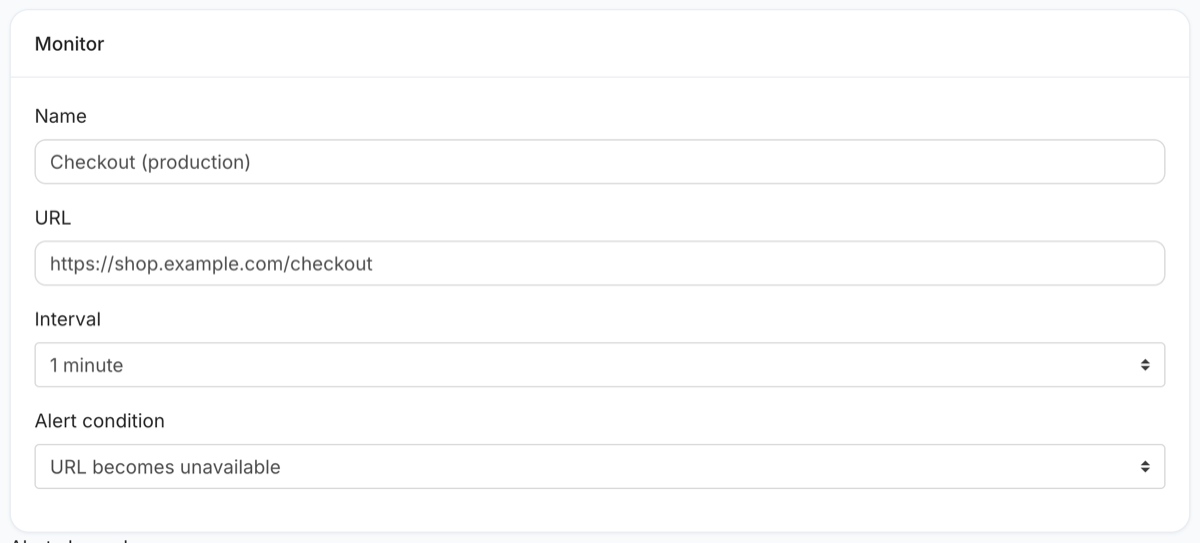 The new monitor form: name and URL.
Choose how often to check
The interval is the longest an outage can go unnoticed before the first check catches it. For a site that makes money, one to five minutes is the sensible range; for a brochure site, fifteen is fine. Our guide on how often to check uptime goes through the trade-off in detail.
Pick the alert condition
Leave it on URL becomes unavailable for a normal uptime alert. If your site sometimes shows an error page with a 200 status (common with WordPress and some hosting panels), choose URL response does not contain text and enter a word that only appears when the page is healthy, such as your footer copyright line or "Add to cart".
Add the channel to the monitor
This is the step that connects the monitor to your team.
Choose the channel type
Below the monitor settings is Alert channels. A new monitor starts with none, so click the + button to add a row, then open its dropdown. You will see Email, Webhook, Slack, Microsoft Teams, Discord, Flock and Telegram. Choose the one you created a webhook for in Step 1.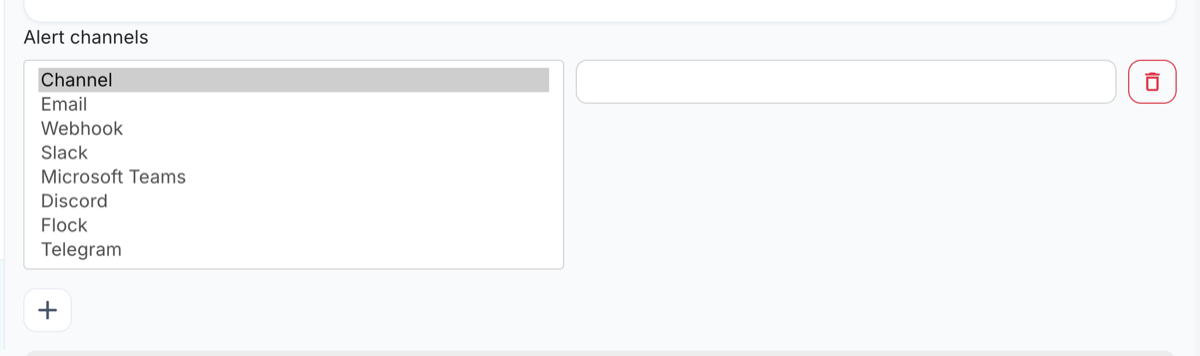 Every alert channel type available on a monitor.
Paste the webhook URL
Paste the URL you copied into the value field. For Telegram, enter the bot token, a space, then the chat ID. The form shows a link to the chat tool's own webhook documentation under the field if you need it. A Slack incoming webhook added as an alert channel.
Add a second channel as a backup
Click + again to add another row underneath. We recommend at least two channels on anything important — typically the team chat channel plus an email address — so that an outage at your chat provider, or a webhook someone deleted, does not mean nobody hears about your outage. The number of chat and webhook channels per monitor depends on your plan, up to ten on Pro.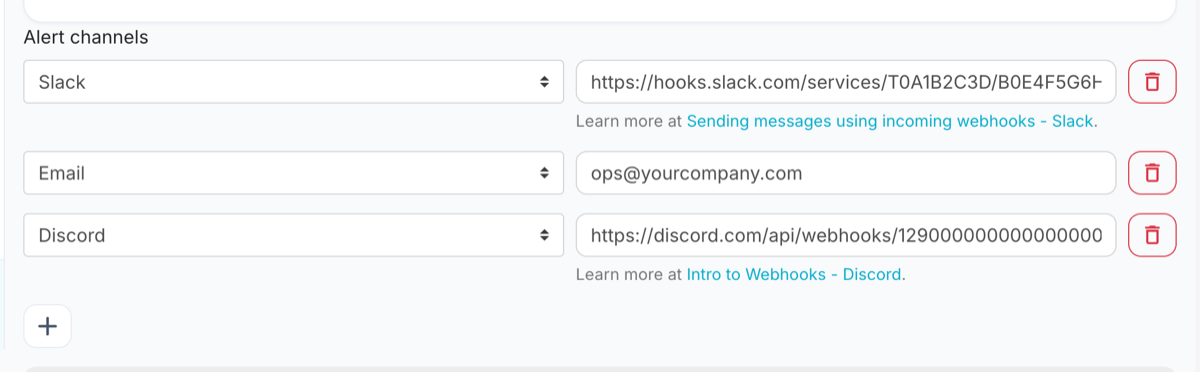 Slack, email and Discord on the same monitor — all three are notified together.
Save
Click Save. The monitor starts checking straight away, and you will see it on the monitor overview with its current status and response time.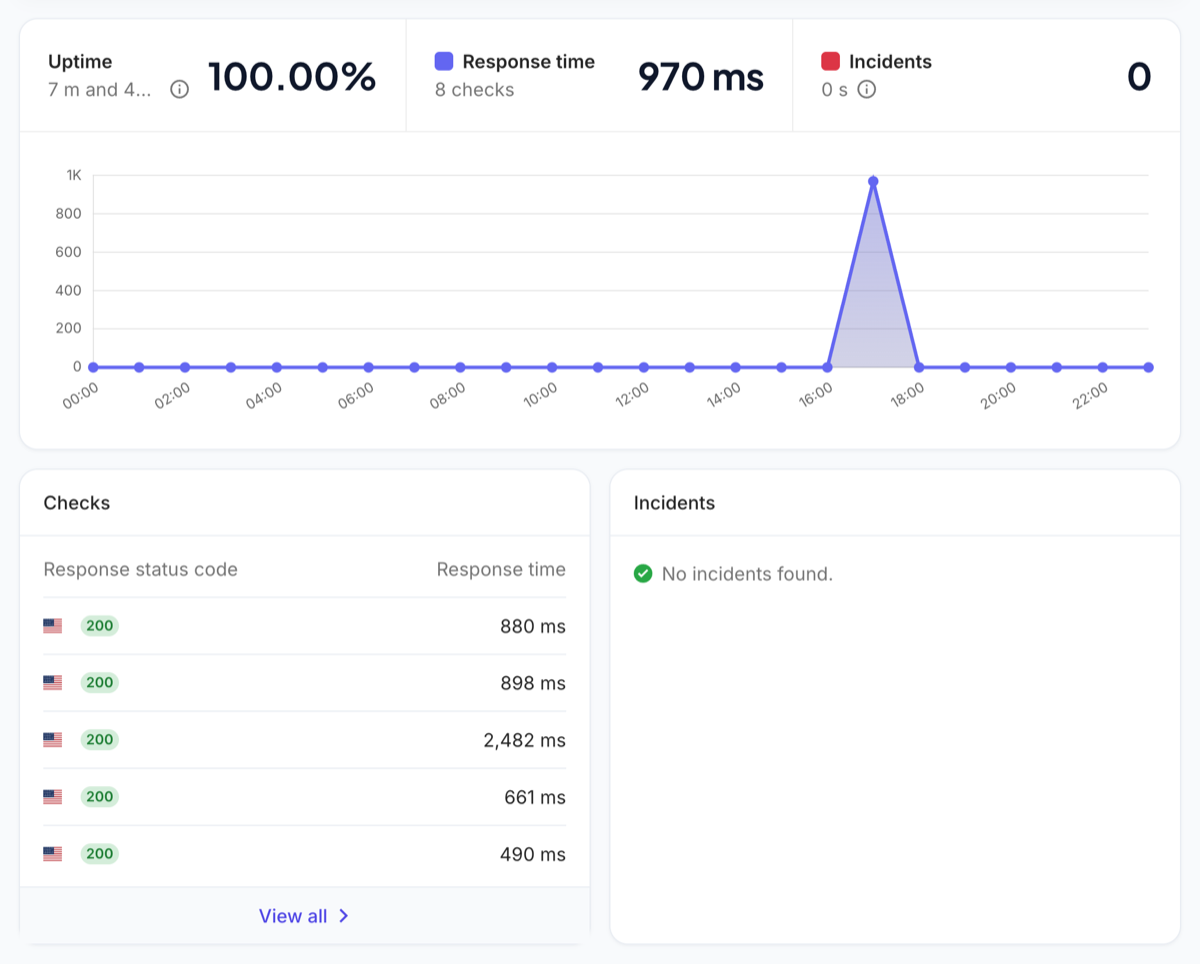 A monitor's overview: uptime, response time, recent checks and incidents.
Test the alert without taking your site down
Never assume an alert works. A pasted URL with a missing character fails silently, and you find out during the real outage.
The safe way to test is a throwaway monitor on a URL that is guaranteed to fail. Create a second monitor pointing at a page on your own domain that does not exist — for example https://yoursite.com/alert-test-404 — and give it the same alert channels. A 404 counts as down, so within one check interval (plus the confirmation re-check) the channel should receive a red "Alert! … is now offline." message.
Then do the reverse: edit the test monitor's URL to your real homepage. On the next check it recovers and the channel should receive a green "Good news! … is now online." message. Seeing both proves the whole path — webhook, channel, permissions and message formatting. Delete the test monitor afterwards.
Every down event is also recorded as an incident on the monitor, with the time it started, the time it ended and the duration. In the test we ran for this guide, the 404 was caught on the first check and the incident closed 51 seconds later, one check after the URL was pointed back at a working page. That log is useful afterwards for working out how long an outage really lasted, independently of when someone noticed it in chat.
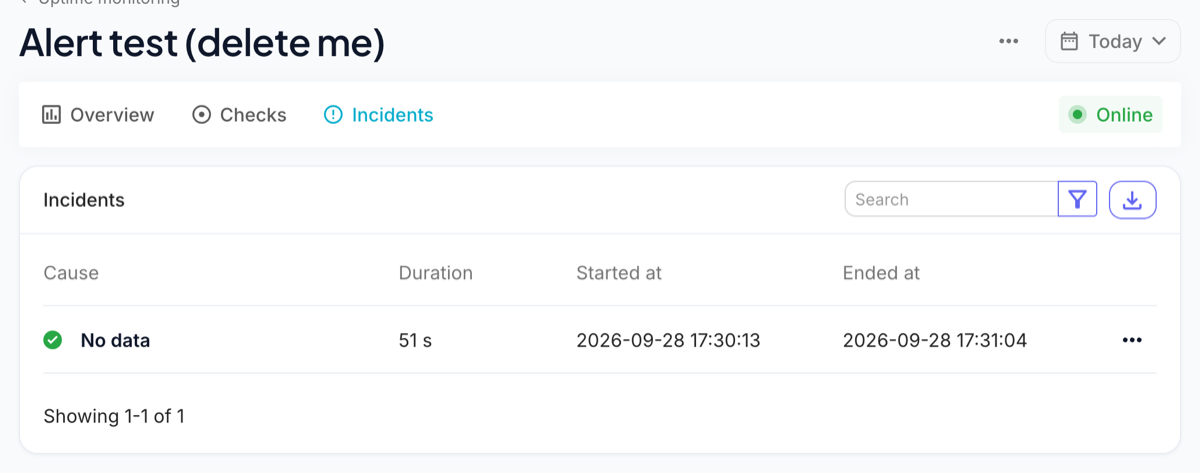 The incident recorded by our own test monitor: down at 17:30:13, recovered at 17:31:04.
Nothing arrived? Check, in this order: the URL was pasted completely (Slack and Discord URLs are long and easy to truncate); the webhook still exists in the chat tool; for Teams, the workflow is switched on and its owner still has an account; for Telegram, the bot is actually a member (or admin) of the chat and the chat ID includes its minus sign.
The message, and the payload for custom webhooks
Chat channels get a short, readable message. The generic webhook gets structured data.
In Slack, Teams, Discord, Flock and Telegram
A down alert reads "Alert! The Checkout (production) monitor is now offline." with a red colour bar in Slack and Discord, followed by a link to the monitor's overview so whoever picks it up can see the recent checks, response codes and the incident. The recovery reads "Good news! The Checkout (production) monitor is now online." in green. The same channels also receive SSL certificate and domain expiry warnings, and content-change alerts, if those are switched on for the monitor.
In a generic webhook
The Webhook channel sends an HTTP POST with a JSON body. For an uptime event it contains the monitor's name, URL, new status, when the current state started, the monitor token and the event type, which is enough to open a ticket, trigger an on-call page or run a script:
Set it up so the channel is still read in six months
Most alert channels do not fail on day one. They fail slowly, as they fill with messages nobody acts on.
Give alerts their own channel
Posting downtime alerts into a busy general channel means they scroll away under conversation. A dedicated channel that contains nothing but alerts can have notifications turned on for everyone without driving them mad.
Split production from everything else
A staging server going down is not the same as the live checkout going down. Send them to different channels — #alerts-production with loud notifications, #alerts-staging muted — so the important one never has to compete for attention.
Route expiry warnings somewhere quieter
A certificate that expires in fourteen days needs a ticket, not a page. If the same monitor carries SSL and domain warnings, consider putting those on a separate monitor with a quieter channel, or email only.
Name monitors for the person reading the alert
The monitor name is the first thing in every message. "Client A — booking form" tells an agency engineer exactly what is broken; "Monitor 12" sends them hunting.
Decide who responds before you need to
A channel notifies everyone, which can mean nobody acts because everyone assumes someone else will. Agree a simple rule — whoever is on duty reacts with an emoji and takes it — and write it in the channel description.
What this setup does not do
Channel alerts tell people; they do not wake anyone up. There is no on-call rotation, escalation or phone-call paging built into MonitoringDaddy. If you need a named person paged at night until they acknowledge, send the generic webhook to an on-call tool such as PagerDuty or Opsgenie and let it handle escalation.
Checks and the confirmation re-check run from a single location. That keeps the product simple and affordable, but a routing problem between our probe and your host looks the same to us as a real outage. Tools that confirm from several regions before alerting are stronger here, and if false alarms from network paths are a serious concern for you, that is worth weighing. Our guide to alert fatigue covers how to keep the false alarms you do get to a minimum.
How to automatically notify a channel when a website goes down
Send website downtime and recovery alerts to a Slack, Microsoft Teams, Discord or Telegram channel.
Create a webhook for the channel
In Slack, Teams (Workflows), Discord or Flock, create an incoming webhook for the channel and copy its URL. For Telegram, create a bot with BotFather and note its token and the chat ID.
Create an uptime monitor
In MonitoringDaddy open Monitors, click New, enter a clear name and the full URL, and choose a check interval.
Add the channel to the monitor
Under Alert channels, choose Slack, Microsoft Teams, Discord, Flock, Telegram or Webhook and paste the webhook URL or token and chat ID.
Add a backup channel
Add a second channel such as an email address so one failed delivery path does not hide an outage.
Save the monitor
Save. Checking starts immediately.
Test with a failing URL
Create a temporary monitor on a URL that returns 404, confirm the down alert arrives in the channel, then point it at a working URL to confirm the recovery alert, and delete it.
Typically about 10 minutes from start to finish.
What it costs
Uptime monitors, watched pages and heartbeats each get their own allowance, so adding a page watch never costs you a monitor. SSL and domain checks ride along with the monitor they belong to and use nothing extra.
| Plan | Monitors | Watched pages | Heartbeats | Fastest interval | Alert channels | Price |
|---|---|---|---|---|---|---|
| Starter | 25 | 25 | 25 | Every 5 minutes | Email + webhook & chat | $5/mo |
| Basic | 10 | 10 | 10 | Every 10 minutes | Email + webhook & chat | $8/mo |
| Growth | 50 | 50 | 50 | Every 5 minutes | Email + webhook & chat | $19/mo |
| Pro | 100 | 100 | 100 | Every 60 seconds | Email + webhook & chat | $34/mo |
Annual billing is cheaper on every paid tier. The pricing page is the authoritative list.
What an alert actually looks like
Every recorded change is compared word by word and kept with a before-and-after image. This is the real output, shown with worked example data.
Price fell from $49 to $39, and an annual discount was added.
The item is available again and the basket button returned.
A new subprocessor was added in another jurisdiction.
Where we can reach you
The free plan sends to one email address. Every paid plan adds the chat and webhook channels below, with 2 to 10 destinations depending on the plan. However many alerts you receive, the price does not change — nothing here is metered or charged per alert.
There are no voice calls and no SMS. If a phone call at 3am is a hard requirement, say so before you subscribe — we would rather tell you now than refund you later.
Channel alert questions
How do I get a Slack notification when my website goes down?
Create a Slack app with Incoming Webhooks switched on, add a webhook for the channel you want, and paste its URL into an uptime monitor as a Slack alert channel. The monitor posts a message when the site goes down and another when it recovers.
Can I send website down alerts to Microsoft Teams?
Yes. Because Microsoft is retiring Office 365 connectors, create the webhook with the Teams Workflows app using the "Send webhook alerts to a channel" template, then paste the workflow's URL into the monitor as a Microsoft Teams alert channel.
Can one monitor notify several channels?
Yes. Each monitor can have several alert channels — for example a Slack channel, a Discord channel and an email address — and all of them are notified at the same time. The number of chat and webhook channels per monitor depends on the plan, up to ten on Pro.
Will the channel get a message every minute while the site is down?
No. Alerts are sent when the status changes, so an outage produces one message when the site goes down and one when it comes back, however long it lasts and however often it is checked.
How quickly will the channel be notified?
Within one check interval plus a few seconds for the confirmation re-check. With a one-minute interval that is usually one to two minutes from the start of the outage.
How do I test the alert without breaking my website?
Add a temporary monitor on a URL on your domain that returns 404, with the same channels. It will be reported as down and trigger the alert. Change its URL to a working page to test the recovery message, then delete it.
Does the channel get notified when the site comes back up?
Yes. A recovery message is sent to every channel on the monitor as soon as a check succeeds again, and the incident log records how long the outage lasted.
Can I send alerts to PagerDuty, Opsgenie or Zapier?
Use the generic Webhook channel. It sends a JSON POST with the monitor name, URL, status and timestamp, which on-call tools and automation platforms can accept as an incoming event.
Related monitoring guides
- Website uptime monitoring setupEvery monitor option explained
- Why monitoring alerts get ignoredKeep the channel worth reading
- How often to check uptimeChoosing the interval
Last updated August 4, 2026 · Written by Amit Gupta, founder of MonitoringDaddy
Your team hears first.
Downtime alerts to Slack, Teams, Discord, Telegram, Flock, email or any webhook — plans from $5 a month.