Price monitoring automatically tracks product or service prices on any web page and alerts you the moment the number changes — no coding required. This guide shows you exactly how to set up price monitoring in MonitoringDaddy using the built-in keyword and content-check function.
What Is Price Monitoring?
Price monitoring is the automated process of watching a specific URL for a known price string and triggering an alert whenever that string disappears or changes. Instead of manually revisiting a competitor's product page or a supplier's catalogue every day, a monitor checks the page for you on a chosen schedule — every 15 minutes, every hour, or once a day — and notifies you instantly when the price moves.
In MonitoringDaddy, price monitoring is built on top of the same keyword monitoring engine used for content checks. You supply the expected price text (for example, $199.99), set the trigger to URL does NOT contain, and the platform fires an alert as soon as that text is no longer found in the page response — meaning the price has changed.
Why Price Monitoring Matters
Price is one of the most volatile elements on any e-commerce or SaaS page. Even a small shift can affect your margins, conversion rates, or competitive positioning. Automated price monitoring removes the manual effort and gives you a real-time edge in several ways:
- Competitor repricing: Know the moment a rival drops or raises their price so you can respond immediately.
- Flash sale detection: Catch time-limited discounts on products you buy or resell before they expire.
- Price-drop alerts: Get notified when a supplier reduces cost so you can update your own pricing or pass savings to customers.
- Stock and price updates on marketplaces: Track third-party sellers on marketplaces where prices fluctuate frequently throughout the day.
- Price rollback verification: Confirm that a promotional price has reverted to standard after a campaign ends.
- Internal QA: Verify that your own product pages always display the correct price after a CMS or deployment change.
How Price Monitoring Works in MonitoringDaddy
MonitoringDaddy fetches the raw HTML of a target URL at your chosen interval, then scans the response body for the price text you specified. The logic is straightforward:
- The crawler makes an HTTP GET request to the product page with the cache buster enabled so it never reads a stale cached copy.
- It searches the response body for the exact string you entered (for example,
$199.99). - If the string is found and you chose URL does NOT contain, the monitor stays green — the price has not changed.
- If the string is absent, the monitor fires an alert to all configured channels.
This is identical in principle to keyword monitoring. The difference is intent: instead of verifying that a content word is present, you are verifying that a precise price value is still present.
Before You Begin
- Open the target product page in your browser and use View Page Source (not the inspector) to confirm the price string appears in the raw HTML — not injected by JavaScript.
- Note the exact format including currency symbol, thousands separator, and decimal:
$1,299.00is different from$1299. - Decide the check frequency: high-volatility pages (flash sales, live auctions) warrant a 15-minute interval; stable B2B pricing can be checked daily.
- Have at least one alert channel ready — an email address or a webhook URL for Slack, Discord, or another tool.
- Check the site's
robots.txtand terms of service to confirm automated requests are permitted.
Step-by-Step Price Monitoring Setup
Price monitoring uses a page watch: you pick the price on the page and get told when it changes, with before-and-after images. The walkthrough uses Books to Scrape, a public practice shop.
Step 1: Page watches → New watch
Paste the product page URL and click I want to watch this page. Pages that build their content with JavaScript, or sit behind a login, cannot be watched yet.
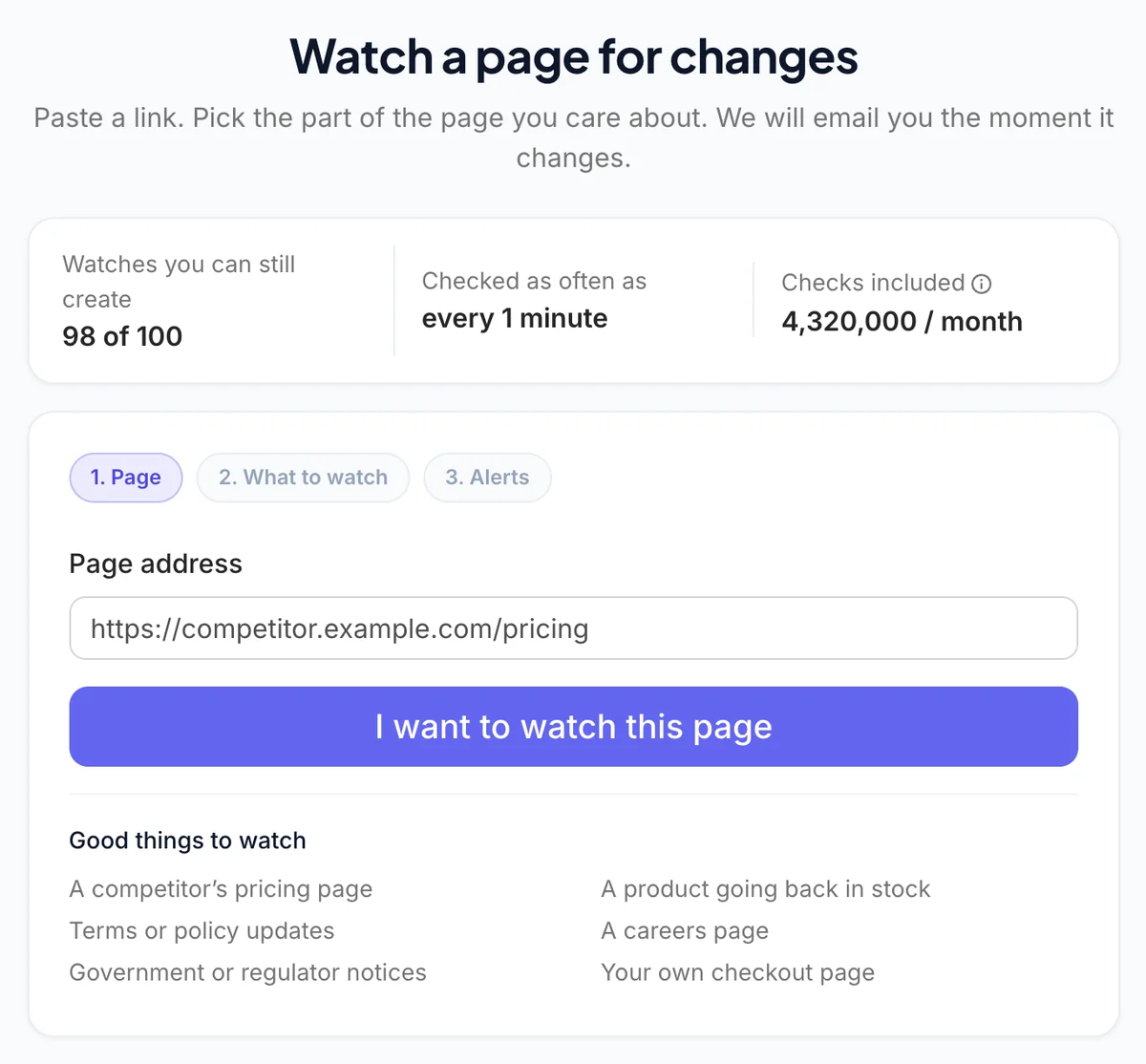 Paste the product page address.
Step 2: Select the price
Pick the suggestion labelled The price here changes, or click the price in the preview. Keep the product title inside the selection so a swapped listing is noticed too.
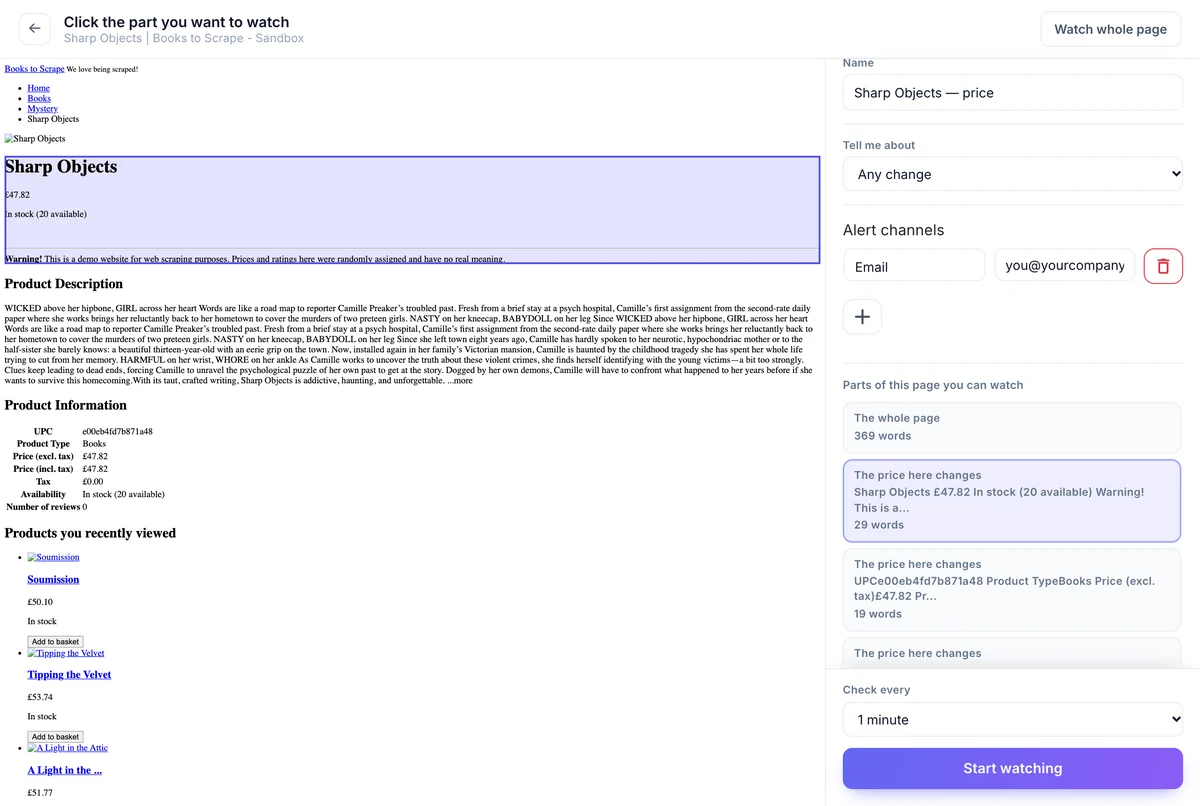 The price block selected, with Any change chosen.
Step 3: Choose "Any change"
Set Tell me about to Any change. The default, Real changes, ignores standalone numbers and waits for at least five changed words — it would never report a price moving from $49 to $59.
Step 4: Interval and alerts
Pick how often to check and where to send the alert, then click Start watching. The first version is captured immediately.
Step 5: Confirm the number filter is off
Open the watch's Settings. Under Reducing false alerts, Ignore standalone numbers must be off for a price watch.
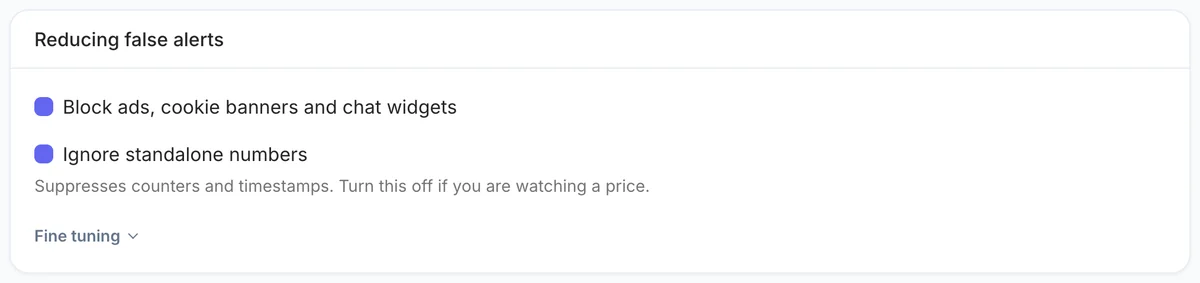 Ignore standalone numbers off for price watches.
Step 6: Read the change
Each change shows the old and new version side by side, with a summary and the time it was detected.
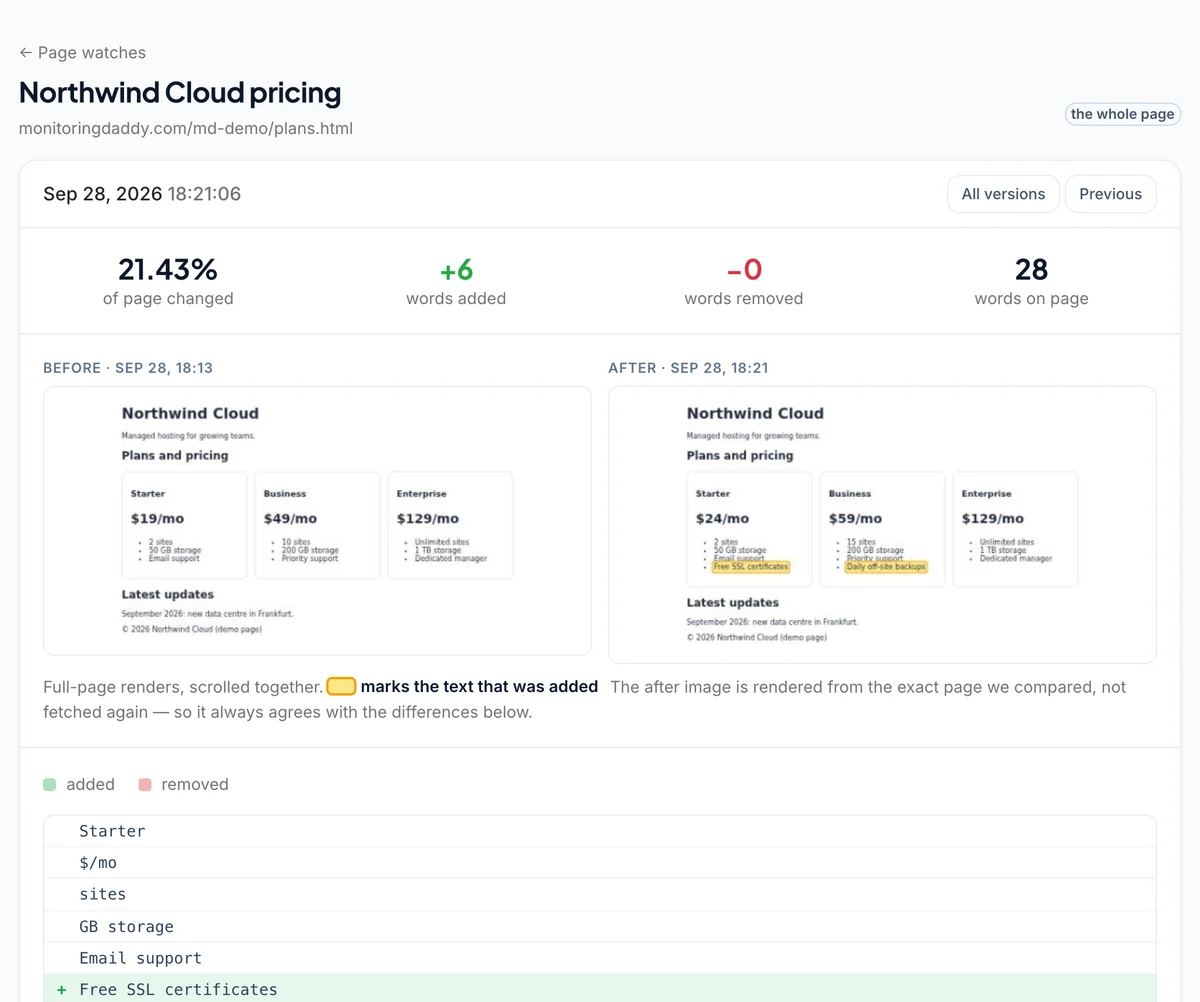 Before and after, with the changed text highlighted.
Recommended Price Monitoring Configuration
| Setting | Recommended |
|---|---|
| What to watch | The price block, including the product title |
| Tell me about | Any change |
| Ignore standalone numbers | Off |
| Block ads, cookie banners and chat widgets | On |
| Only alert when the change mentions | Optional — e.g. sale, reduced, clearance |
| Check every | Hourly for competitors; faster for your own store |
An older approach — an uptime monitor with URL response does not contain text set to the current price — still works for a single known price, but it only tells you the price is no longer that exact string. A page watch tells you what it changed to.
Best Practices for Accurate Price Monitoring
Target a Stable Price Element
Some pages show the price in multiple places (hero section, add-to-cart widget, structured data). Use View Page Source to find the most stable occurrence — ideally inside a consistent HTML element like a <span> with a fixed class. Copy the price exactly as it appears in the source, not as rendered by the browser.
Match the Exact Format
Currency symbol position, space between symbol and number, thousands separators, and decimal notation all vary by locale. $1,299.00, $ 1299, and USD 1,299 are three different strings. An incorrect format means the keyword is never matched and alerts never fire.
Anti-Bot and Rate-Limit Considerations
Some e-commerce sites use bot-detection middleware (Cloudflare, PerimeterX, Akamai Bot Manager) that may block automated requests or serve a challenge page instead of the product HTML. If your monitor consistently shows the keyword as missing even though the price has not changed, the page may be blocking the crawler. In that case, check whether the site exposes a public REST API or a JSON-LD structured data block that includes the price — these are often less protected.
Check Frequency vs. Server Load
Avoid setting an unnecessarily short interval on sites where prices change only a few times a day. A 1-hour or 6-hour interval is usually more than sufficient for standard retail pages and reduces the load on the target server.
Update the Keyword After Each Change
Once a price change alert fires and you have confirmed the new price, update the keyword in your monitor to the new value. If you leave the old price string in place, the monitor will continue alerting on every subsequent check because the old text is still absent.
Limitations
- JavaScript-rendered prices: If the price is injected by a front-end framework (React, Vue, Angular) after the initial HTML is served, it will not appear in the raw response and the text lookup will fail. Use REST API monitoring against a backend endpoint instead.
- Dynamic price formats: Pages that display prices with live currency conversion or personalised discounts may show a different value on each request, causing false alerts.
- Bot-protection pages: Sites that serve a CAPTCHA or access-denied page to automated crawlers will prevent the monitor from reading the real price.
- Login-gated prices: Pages that require authentication before displaying a price are not accessible to an unauthenticated HTTP GET request. Consider whether the site provides a logged-in API endpoint.
- Complex price layouts: Pages that display price ranges, bundles, or multi-variant pricing may need a more specific substring to target the correct value.
Troubleshooting
Alert fires immediately after setup even though price has not changed
The keyword does not match what appears in the raw HTML. Open the page source and copy the exact price string, including the currency symbol and every character. Check for non-breaking spaces ( ) between the symbol and number, or for HTML entities encoding the currency symbol.
No alerts when the price clearly changed
Verify the monitor is in an active state. Also confirm the cache buster is enabled — if it is disabled, the server may be returning a cached response that still contains the old price. Finally, check that the page is not behind a bot-protection layer that serves a different HTML to the crawler.
Repeated alerts every check cycle
The price has changed and the old keyword is no longer on the page. Acknowledge the alert, visit the page, confirm the new price, and update the keyword field in your monitor settings to the new price string.
Next Steps
Once your price monitor is running, consider pairing it with a keyword monitor on the same URL to also watch for "Out of Stock" or "Discontinued" text. For sites that expose pricing through an API, REST API monitoring lets you parse structured JSON responses for precise value comparisons. Review the full list of monitor types and plan limits on the pricing page.
Frequently Asked Questions
What is price monitoring and how does it work in MonitoringDaddy?
Price monitoring in MonitoringDaddy uses the keyword content-check engine to scan a product page's raw HTML for an exact price string at regular intervals. When the string is no longer found — because the price has changed — an alert is sent to your configured channels immediately.
Do I need to know how to code to set up price monitoring?
No coding is required. You only need the product page URL and the exact price text as it appears in the page source. Everything else is configured through the MonitoringDaddy dashboard with simple dropdown menus and text fields.
How often can I check a page for price changes?
You can check as frequently as every 15 minutes for fast-moving prices such as flash sales, or as infrequently as once a day for stable catalogues. A 1-hour interval is a good default for most standard e-commerce product pages.
Will price monitoring work if the price is loaded by JavaScript?
No. The content-check crawler reads the raw HTML response, not the DOM rendered after JavaScript executes. If the price is injected by a framework like React or Vue, it will not appear in the response body. In that case, use REST API monitoring against a backend or structured-data endpoint that exposes the price directly.
What should I set — URL contains or URL does NOT contain?
For most price-change alerts, choose URL does NOT contain. This means the monitor alerts you as soon as your expected price string disappears from the page — which happens the moment the price changes to any other value. Use URL contains if you want to be alerted only when a specific target price first appears.
Why am I getting a false alert even though the price has not changed?
The most common cause is a mismatch between the keyword you entered and the exact text in the raw HTML. Open View Page Source in your browser (not the inspector), find the price, and copy it character-for-character including the currency symbol, spaces, and decimal format. Also ensure the cache buster is enabled so you are not reading a stale cached page.
Can I monitor prices on sites that require login?
Not with a standard unauthenticated GET request. Pages behind a login wall will return a redirect or login form instead of the product HTML. If the site provides an authenticated API, you can use REST API monitoring with an Authorization header to access price data.
How do I stop repeated alerts after a price change is detected?
Once you confirm the new price on the product page, update the keyword field in your monitor settings to the new price string. This resets the baseline and the monitor will stay green until the price changes again.