A self-hosted status page lets you display the real-time health of your website, APIs, and servers under your own brand and domain — building user trust, reducing support tickets, and showing transparency during incidents. This guide walks you through every step to set one up in MonitoringDaddy.
What Is a Self-Hosted Status Page?
A self-hosted status page is a public (or private) web page that reflects the live operational status of your services. Instead of pointing users to a generic third-party URL, you host it on a subdomain you own — for example, status.example.com — while MonitoringDaddy powers the uptime data behind it.
The page updates automatically based on your existing monitors. When a service goes down, the status page reflects that in real time. When it recovers, the page turns green again — all without any manual action from your team.
Why Public Status Pages Matter
A well-maintained status page delivers measurable business value beyond just showing a green dot:
- Transparency builds trust. Users who can check your status page themselves are less likely to assume the worst — or flood your inbox.
- Fewer support tickets. During incidents, a live status update cuts inbound tickets significantly because users already know you are aware and working on it.
- Professional image. A branded status page signals that you take reliability seriously — an expectation from SaaS buyers, enterprise clients, and API consumers.
- Incident accountability. Historical uptime data on the page demonstrates your track record of reliability to prospects and customers.
- SEO and direct traffic. A public, indexed status page can appear in search results when users look for your service health.
How Status Pages Work in MonitoringDaddy
MonitoringDaddy connects your status page directly to your existing monitors. Each monitor you attach feeds its live check results — up, degraded, or down — into the status page display. You do not need to maintain the page manually; the monitoring engine does it for you.
If you do not yet have monitors configured, start with website uptime monitoring first, then return here to attach those monitors to your status page.
Before You Begin
- Have at least one active monitor set up in MonitoringDaddy (website, API, server, or SSL).
- Decide whether the page will be public, private, or password-protected.
- Choose a subdomain for your custom domain if you plan to use one (for example,
status.example.com). - Have access to your domain's DNS control panel if you want a custom domain.
- Prepare your brand logo and favicon files (optional but recommended).
Step-by-Step: How to Set Up a Self-Hosted Status Page
Everything is on one form under Status pages → New.
Step 1: Name, slug and monitors
The name is the page title. The slug becomes monitoringdaddy.com/your-slug until you add a domain. Select the customer-facing monitors from the Monitors list (Ctrl or Cmd to select several).
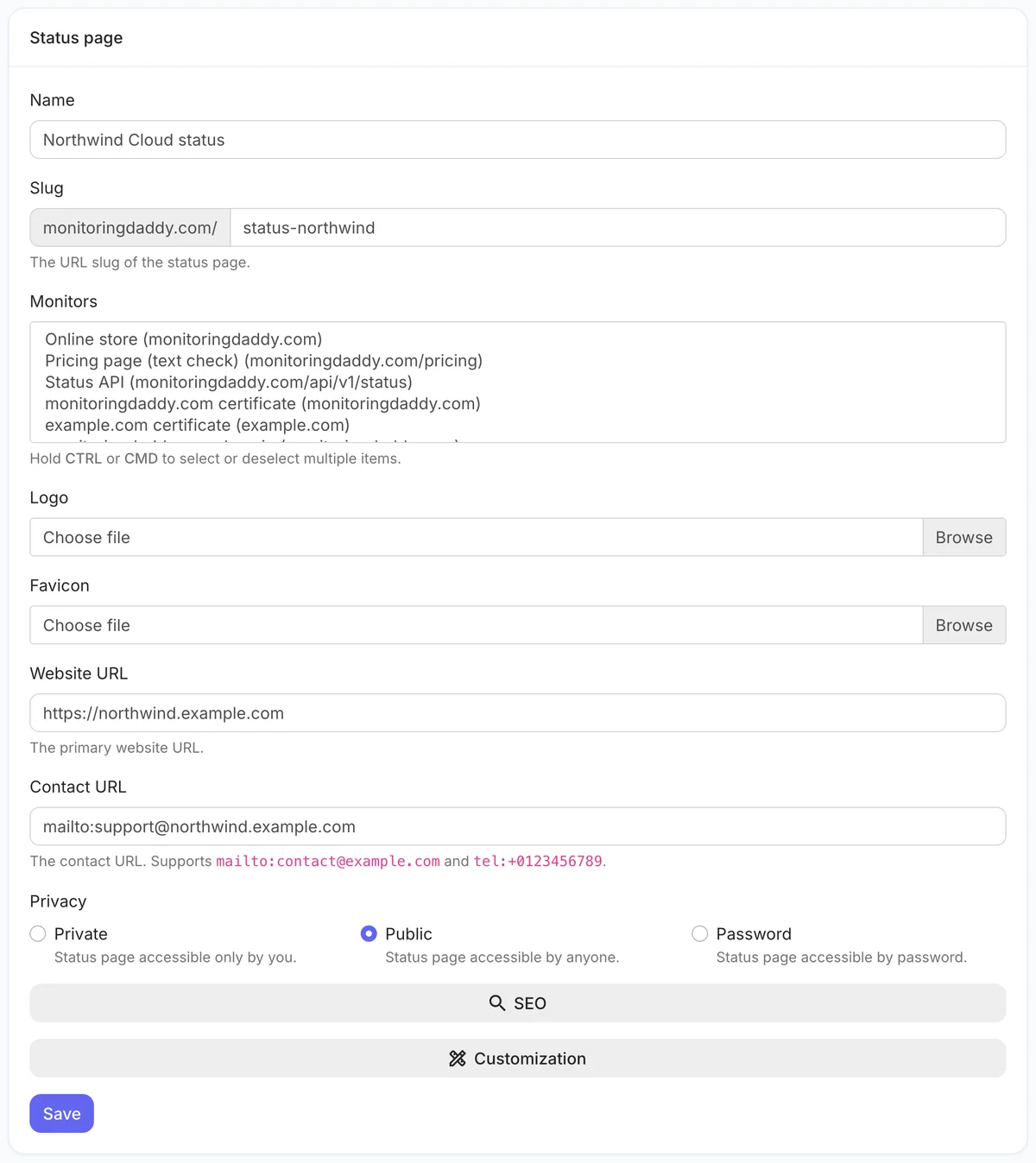 The status page form.
Step 2: Logo, website and contact link
Upload a logo and favicon, add your website URL, and set the Contact URL to a support page, mailto: or tel: link.
Step 3: Privacy
Public for customers, Password for a single client or internal team, Private while you set it up.
Step 4: SEO and custom domain
Under SEO, set the meta title and description or tick Noindex. Under Customization, enter a domain such as status.example.com and point its DNS with an A record to 167.172.242.136 or a CNAME to monitoringdaddy.com. Custom CSS and JavaScript apply once a custom domain is set.
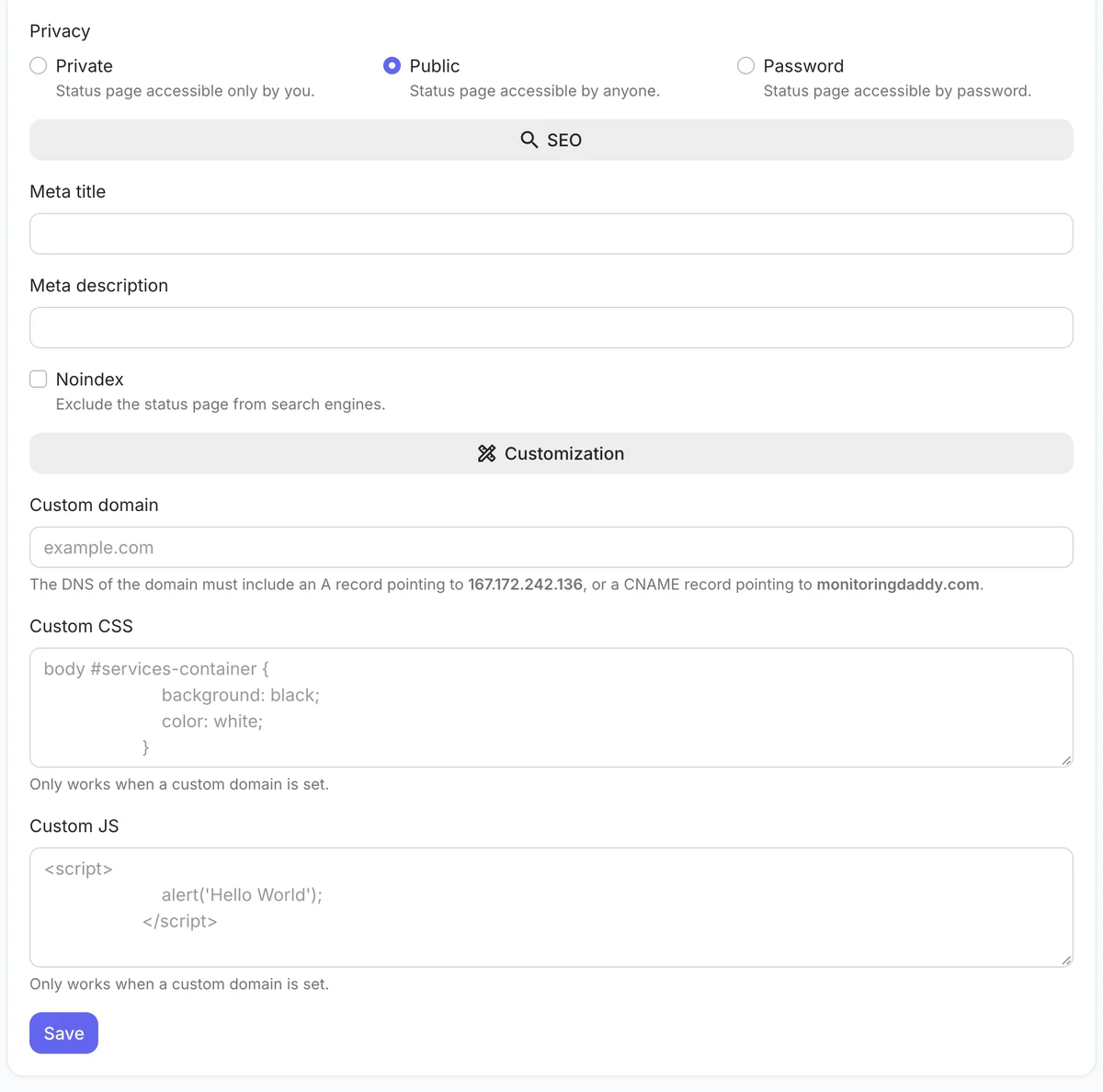 Privacy, SEO and customization settings.
Recommended Configuration
| Setting | Recommended |
|---|---|
| Name | Example Status |
| Slug | example-status |
| Monitors | Website, app login, public API |
| Website URL | https://example.com |
| Contact URL | mailto:support@example.com |
| Privacy | Public |
| Noindex | Off, so customers can find it by searching "example status" |
| Custom domain | status.example.com (A or CNAME record) |
HTTPS for a custom domain is not issued automatically yet. After pointing DNS, open the page over https:// and confirm it loads before linking to it from your site or help centre.
Best Practices for Status Pages
Communicate During Incidents
A status page is most valuable during an outage. Use incident communication features to post real-time updates — "Investigating," "Identified," "Monitoring," and "Resolved" — so users know you are actively working on the issue. Regular updates, even brief ones, dramatically reduce support ticket volume.
Keep Your Monitor List Focused
Only surface monitors your users depend on. Showing too many internal or infrastructure monitors can confuse customers. Aim for service-level monitors (website, API, login, checkout) rather than raw server metrics.
Enable Subscriber Notifications
Allow visitors to subscribe for email notifications when your service status changes. This turns your status page from a passive dashboard into an active communication channel — subscribers get proactively notified instead of having to check manually during incidents.
Test Your Status Page Before Launch
Before announcing the page publicly, verify that all attached monitors are reporting correctly, the custom domain resolves over HTTPS, the logo and favicon display properly, and the contact link works. Run a test by temporarily pausing a monitor to confirm the status page reflects the change.
Troubleshooting
| Issue | Likely Cause | Fix |
|---|---|---|
| Custom domain not resolving | DNS record not propagated yet or wrong value | Verify the A record (167.172.242.136) or CNAME (monitoringdaddy.com) in your DNS panel. Wait up to 24 hours for full propagation. |
| Status page shows no monitors | No monitors attached, or monitors are paused | Go to the status page settings and confirm at least one active monitor is selected. |
| Logo or favicon not showing | Unsupported file format or oversized file | Use PNG or SVG for logos; PNG or ICO (max 32×32) for favicons. Keep file sizes under 500 KB. |
| Custom CSS not applying | Selector specificity too low or syntax error | Use browser developer tools to inspect live selectors and confirm your CSS has no syntax errors. |
| Page not accessible with password | Password field left empty when Privacy set to Password | Return to settings, set a password in the Password field, and save. |
Next Steps
With your status page live, the next priority is ensuring your monitors are comprehensive. Add website uptime monitoring for every critical endpoint you expose to users. Review the full monitoring guide for SSL, domain, and server coverage. When your monitoring setup grows, explore MonitoringDaddy's pricing plans to find the tier that fits your scale.
Frequently Asked Questions
What is a self-hosted status page?
A self-hosted status page is a public or private web page hosted on your own domain (for example, status.example.com) that displays the live operational health of your services. MonitoringDaddy powers the uptime data behind it so the page updates automatically whenever a service goes up or down.
Do I need to set up custom DNS to use a status page?
No — a custom domain is optional. MonitoringDaddy provides a default hosted URL using your slug. However, pointing the page to your own subdomain (via an A record or CNAME) is strongly recommended for branding consistency and user trust.
What DNS record do I add for a custom domain?
Add either an A record pointing to 167.172.242.136 or a CNAME record pointing to monitoringdaddy.com in your DNS control panel. The CNAME option is preferred for subdomains like status.example.com. MonitoringDaddy automatically provisions HTTPS once the record resolves.
Can I make the status page private or password-protected?
Yes. The Privacy setting offers three options: Public (anyone can view), Private (only the account owner), and Password (visitors must enter a password). Choose the option that fits your use case — private pages work well for internal teams, while public pages are best for customer transparency.
How many monitors can I attach to a status page?
You can attach multiple monitors of any type — website, API, server, SSL, or domain. There is no hard limit on the number of monitors per status page, though we recommend showing only the services your users directly interact with to keep the page clear and useful.
Can I customize the look of my status page?
Yes. You can upload a logo and favicon, inject custom CSS to override default styles, and add custom JavaScript for analytics or widgets. This lets you make the status page feel like a natural part of your brand rather than a generic third-party tool.
Will my status page automatically update when a service goes down?
Yes. The status page reflects your monitor results in real time. When a monitor detects downtime, the corresponding service row on the page updates immediately — no manual action required from your team.
Should I enable Noindex on my status page?
It depends on your goal. If you want search engines to index your status page so customers and prospects can find it (which builds credibility), leave Noindex off. If the page is internal or password-protected, enable Noindex to prevent it from appearing in search results.